01 / 03
Check which link you selected
The Spreadsheet navigation link opens the ZentBuy workbook. A product link inside a workbook row may open a separate seller or source listing. Confirm whether you are trying to open the workbook itself or a link from one of its rows before troubleshooting.
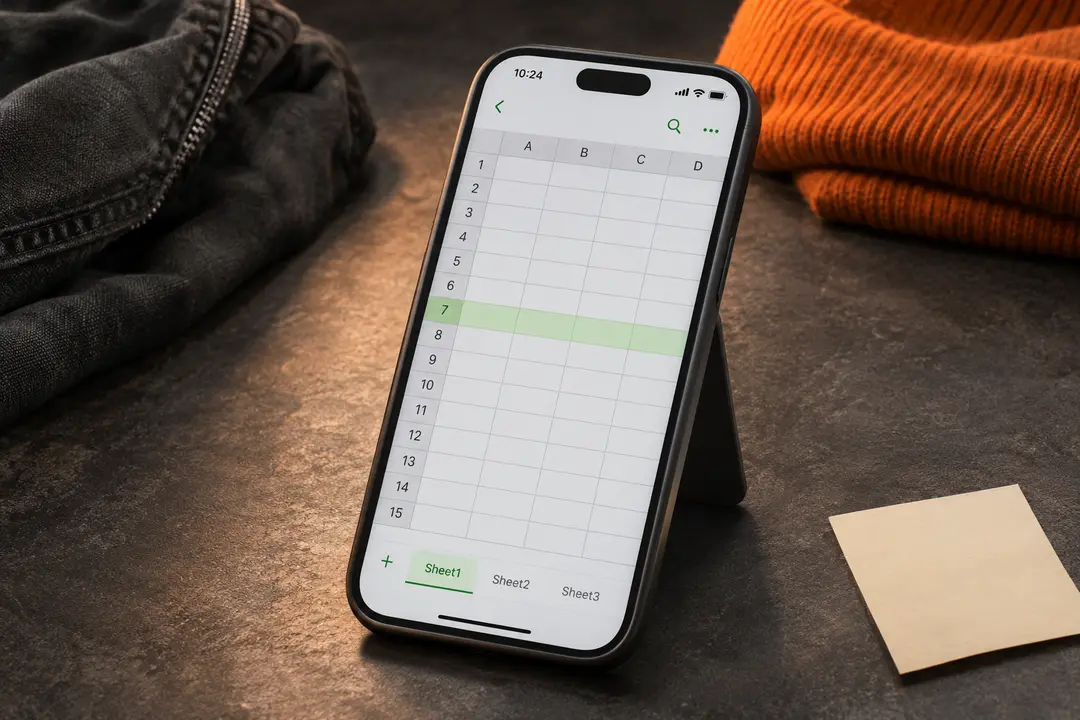
If the workbook opens at a different section than expected, use the sheet tabs along the bottom and select the section name.
02 / 03
Try the simple browser checks
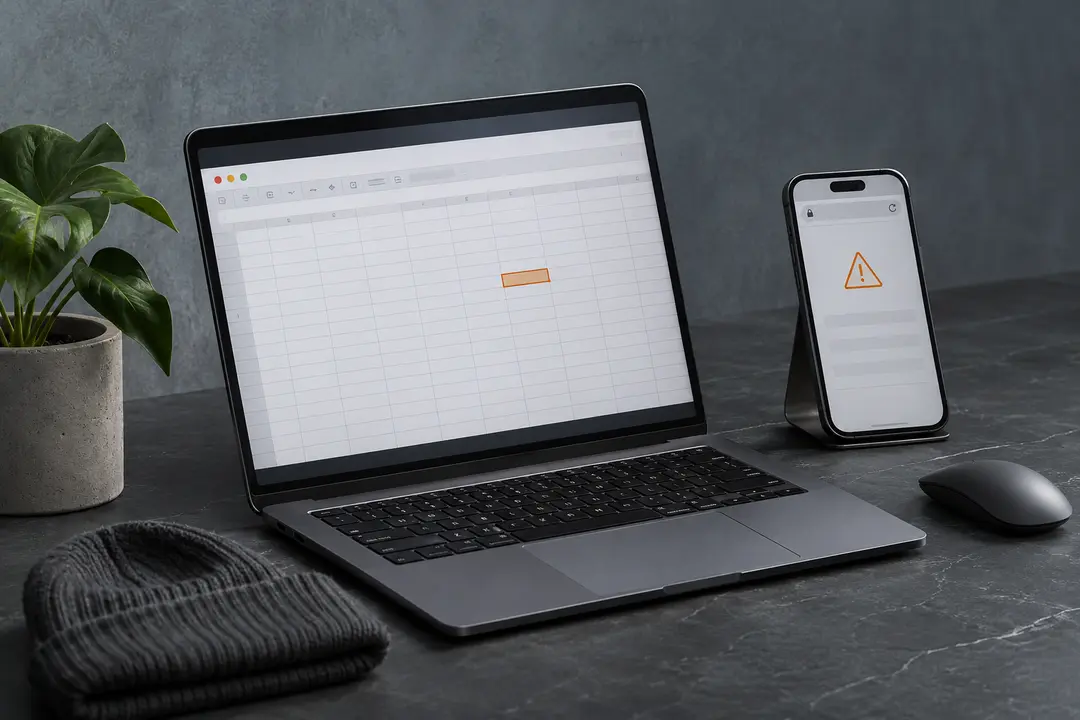
Open the workbook link in a current browser tab, then try the same link in a new tab or in the Google Sheets app if you use it. Check that the address is complete and that your browser has not blocked a new window. If Google shows an access or sign-in message, follow Google’s prompt or check that you are using the intended account.
For a product link, return to the spreadsheet and try the row link once more. A listing may have changed, moved, or become unavailable since it was added; the directory cannot restore or validate an outside listing.
03 / 03
Avoid editing the source workbook to fix a link
You do not need to change cells or sharing settings to use a link. If the same issue continues, use another listing or contact the workbook owner or the relevant official service through its own help route.
Do not enter account details on a page unless you recognize the service and address. This website does not collect sign-in information.
We may earn a referral fee.
Register with ZentBuy