01 / 03
Start with the section that fits your search
The ZentBuy spreadsheet is organized into named sections such as Shoes, Shirts / Singlet, Pants / Shorts, Perfume, and Bag / Wallet. Start with the closest match; use 🔥Top🔥 when you want to browse the workbook’s own featured section.
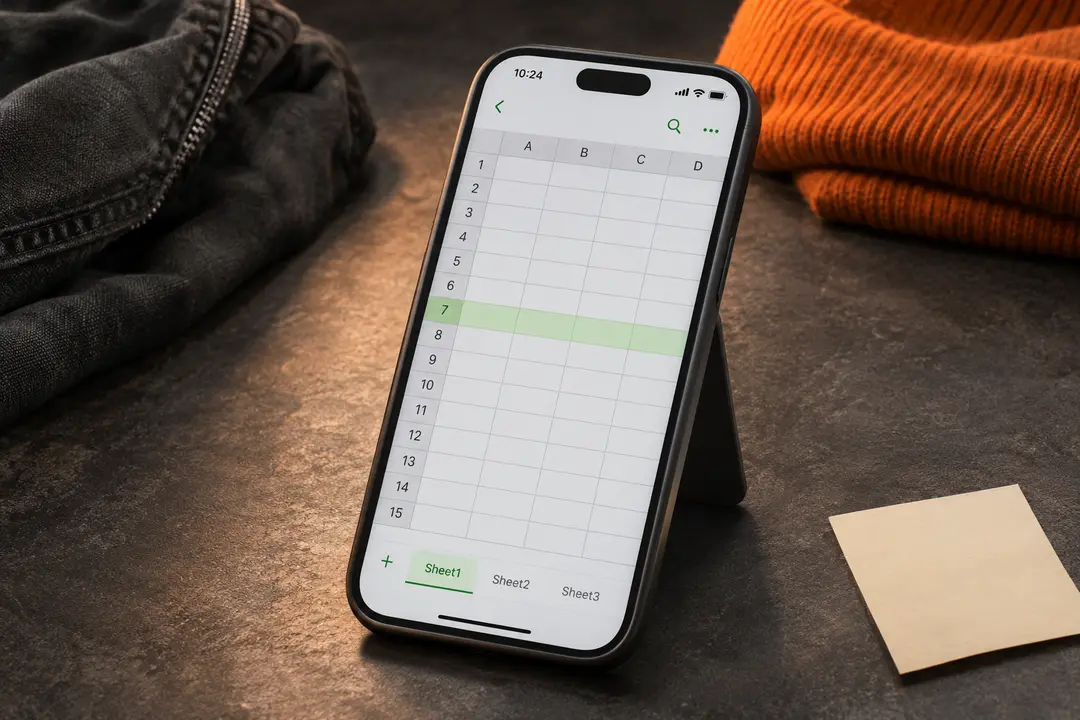
The Spreadsheet link in the navigation opens the workbook. In Google Sheets, use the tabs along the bottom to move between sections. A few source tab names contain trailing spaces; the website trims those in visible labels for readability.
02 / 03
Read the row before opening a link
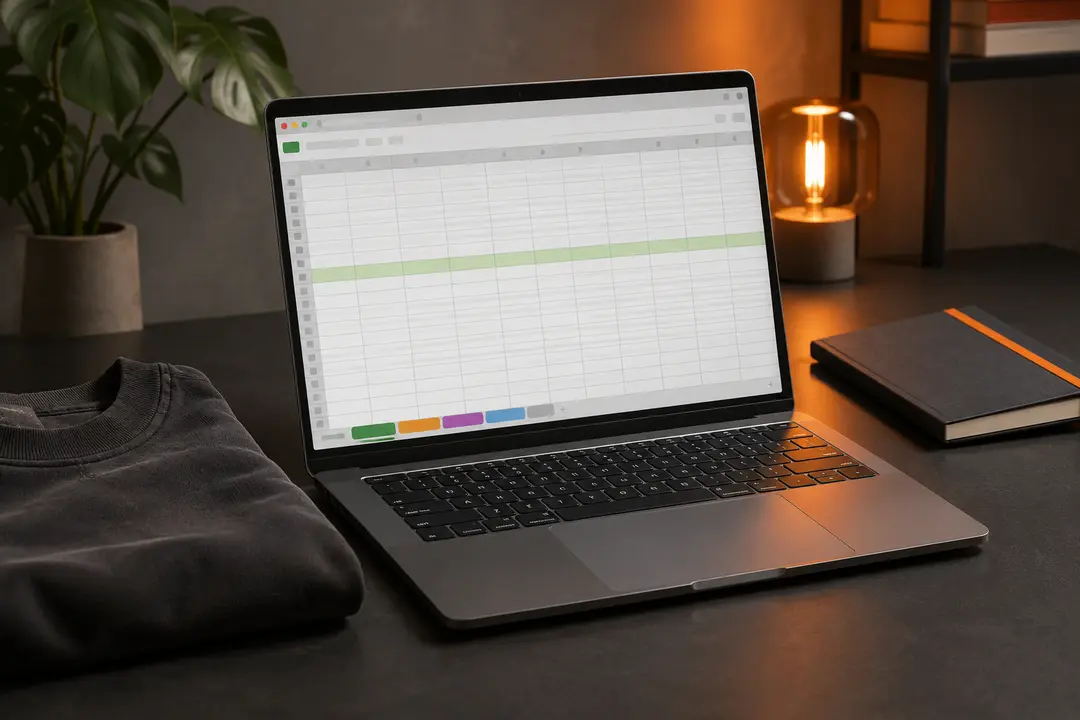
Look across the full row and read its column headings first. Different sections can contain different information, so do not assume every tab uses identical columns. If a row has a product image, option notes, or more than one link, check those details before leaving the sheet.
A spreadsheet entry is a discovery pointer. It is not a stock check, product guarantee, or order confirmation. The seller page and ZentBuy account are where you should confirm the current options and status.
03 / 03
Keep the steps separate
Use the product link to inspect the source listing, then decide whether to continue through ZentBuy. Product selection, order placement, warehouse steps, and international parcel shipping happen on ZentBuy’s service. This independent guide does not take orders or handle payments.
If a link is unavailable or a row looks unclear, try another entry or category. Treat prices, availability, sizing, and seller details as changeable and confirm them on the live listing before you act.
We may earn a referral fee.
Register with ZentBuy